
Key notes
- The Windows Audio Endpoint Builder is an essential service that deals with output sound on your PC.
- However, in rare cases, this service runs into problems, takes up vital CPU space, and almost renders your PC unusable.
- This issue has various potential causes, but it can be fixed by applying the tested and proven solutions in this guide.

It is important to note that the Windows Audio Endpoint Builder wouldn’t record a high CPU usage typically, hence the need to attend to this issue with urgency.
How can I fix the Windows Audio Endpoint Builder if it registers high CPU usage?
Before exploring the sophisticated fixes in this section, you should try the two troubleshooting steps below:
- Remove the audio jack and any other external device for about 10 seconds
- Restart your PC
1. Use Command Prompt
- Press the Windows key, type cmd, and select Run as administrator under Command Prompt.

- Type the following commands and press Enter after each:
Dism /Online /Cleanup-Image /CheckHealthDism /Online /Cleanup-Image /ScanHealthDism /Online /Cleanup-Image /RestoreHealthsfc/scannowDism /online /Cleanup-Image /StartComponentCleanupDism /online /Cleanup-Image /StartComponentCleanup /ResetBasenet start w32time w32tm/resyncgpupdate/forcechkdsk /f /r - If you are prompted while running the CHKDSK, press the Y button.
- Finally, note that you must wait for each command to finish running before moving to the next.
Sometimes, the Windows Audio Endpoint Builder’s high CPU usage is due to broken system files and corrupt memory partitions. Run the commands below will fix this quickly and restart all the needed components,
2. Uninstall and reinstall audio drivers
- Press the Windows key + X and select Device Manager.
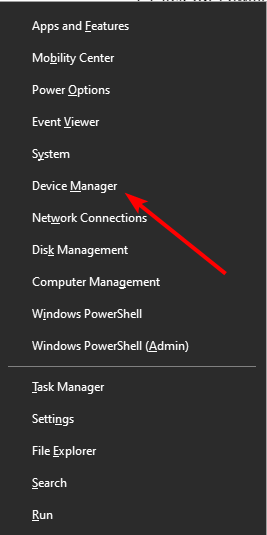
- Double-click the Sound, video, and game controllers option to expand it and right-click each driver there.
- Now, select the Uninstall device option.

- Check the box for Delete the driver software for this device and click the Uninstall button.

- Finally, go to the manufacturer’s website to download the latest or older version of the driver.
Many users have found problems with their audio drivers to be the cause of the Windows Audio Endpoint Builder high CPU issue. Reinstalling the drivers should solve the problem.
It is important to note that some users have had luck using the latest drivers while some fixed this problem using an older one. So, you can try either.
3. Run the audio troubleshooter
- Press the Windows key + I and select the Update & Security option.
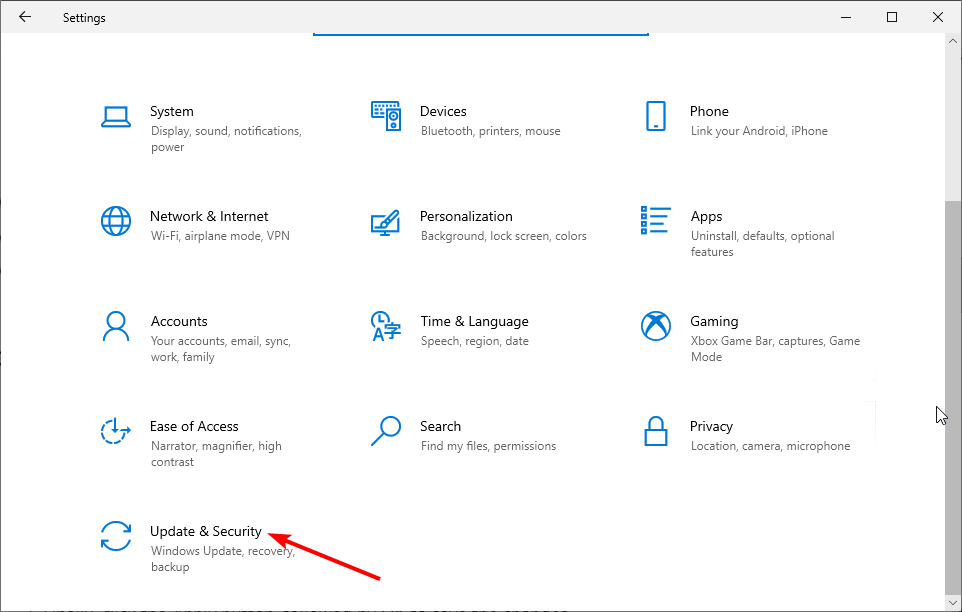
- Click Troubleshoot in the left pane and select Additional troubleshooters.

- Finally, select the Playing Audio option and click Run the troubleshooter.

At times, the Windows Audio Endpoint Builder might be registering high CPU usage because of minor issues. Again, the built-in troubleshooter is the best-placed tool to clear up these glitches and restore normalcy.
