

- What is WordPress Multisite?
- Pros of using a WordPress multisite network
- Cons of using a WordPress multisite network
- Who needs a WordPress multisite network?
- Requirements for a WordPress multisite network
- Choosing a domain structure for your multisite network
- Setting up wildcard subdomains
- Setting up custom domain for WordPress multisite
- Enabling WordPress multisite network feature
- Setting up your WordPress multisite network
- Configuring network settings
- Opening your multisite network for registrations
- New site settings
- Upload settings for your multisite network
- Plugin menu settings
- Adding new sites to your WordPress multisite network
- Adding themes and plugins to your multisite network
- Adding default Content to new sites
What is WordPress Multisite Network?
A WordPress Multisite network allows you to run and manage multiple WordPress blogs or sites from a single WordPress installation. It enables you to create new sites instantly and manage them using the same username and password. You can even allow other users to sign up and create their own blogs on your domain. The WordPress multisite network comes with advanced settings that you can use to customize each website/blog on your network. Pros of Using a WordPress Multisite Network In many situations, a WordPress multisite network can be more useful than managing multiple standalone WordPress sites. Here are some of the advantages of using a WordPress multisite network:- As the network administrator, you can easily manage multiple sites from a single dashboard.
- Each site on the network can have its own admins. The site admins will have the capability to manage only their own website.
- You can install plugins/themes and activate them for multiple sites with one download.
- A multisite network also makes it easier for you to manage updates. You only need to update your WordPress, plugins, or themes on one “master” install.
- All sites on the network share the same resources. This means that when your network is down, all other sites go down as well.
- It’s difficult to manage traffic and server resources for the beginner-level users. In case one of your websites gets unexpected traffic, then it will affect all other websites on the network.
- If one website gets hacked, all sites on your network get hacked.
- Some WordPress plugins may not work well on a multisite network.
- WordPress multisite network is not adequately supported by all web hosting providers, which limits your options. We will talk more about this later in the article.
Who needs a WordPress multisite network?
Just because you manage multiple WordPress websites does not mean you need to start using a multisite network. There are third-party tools to manage multiple WordPress sites from a single dashboard. Tools like InfiniteWP or SolidWP make it easier to maintain multiple WordPress sites under one roof without switching back and forth from one site to another. Here are some scenarios when creating a multisite network makes sense:- A magazine website with different sections managed by different teams.
- A business website with sub-sites for different locations and branches.
- Government or non-profit websites can use WordPress multisite for different departments, locations, and regions.
- Your own network of blogs running on multiple subdomains.
- Schools and colleges allow students to create their own blogs on school servers.
Requirements for a WordPress Multisite Network
All websites on a WordPress multisite network share the same server resources. This means that the most important thing you will need is a good WordPress hosting. If you are planning on having just a couple of websites with low traffic, then you can probably get away with shared hosting. However, due to the nature of a multisite network, you’d need VPS hosting or a dedicated server as your sites grow. We recommend Bluehost because they offer both shared hosting and VPS/Dedicated servers, and they are also one of the official WordPress hosting partners.
Choosing a Domain Structure for your Multisite Network
On a WordPress multisite network, you can add new sites using either subdomains or sub-directories. Example of subdomain: Example of sub-directory: If you choose subdomains, then you will have to configure wildcard subdomains on your server. We will show you how to do that in the next step. On the other hand, if you choose sub-directories or path-based URLs for sites on your network, then you can skip the next step.Setting Up Wildcard Subdomains
If you decide to use subdomains for websites on your multisite network, then you will need to set up wildcard subdomains for your multisite network. To do that, first, you need to login to your WordPress hosting account’s cPanel dashboard. After that, you need to scroll down to the ‘Domains’ section and then click on ‘Subdomains’.

Setting up Custom Domains for Each Site
WordPress multisite also allows you to set different domains for each website in your multisite network. To set up custom domains, you’ll need to use the domain mapping feature and update nameserver records in your domain registrar account.
Enabling WordPress Multisite Network Feature
The Multisite Network feature comes built-in with each WordPress installation. All you need to do is install and setup WordPress like you normally would. After that, you just need to enable the multisite feature. You can also enable the multisite feature on any existing WordPress site. Before you enable multisite, don’t forget to create a complete backup of your WordPress site. To enable Multisite, connect to your site using an FTP client or cPanel file manager, and open the wp-config.php file for editing. You need to add the following code to your wp-config.php file just before the /* That’s all, stop editing! Happy blogging. */ line.Once you are done, you can save and upload your wp-config.php file back to the server.
This code simply enables the multisite feature on your WordPress site. Once enabled, you will still need to setup the multisite network.
Setting Up Your WordPress Multisite Network
Now that you have successfully enabled the Multisite Network feature on your WordPress site, it is time to set up your network.
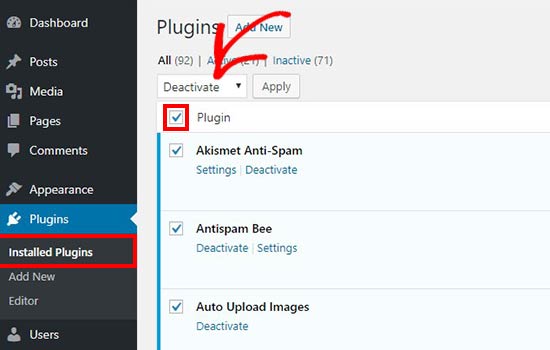
If you are setting up a multisite network on an existing WordPress website, then you will need to deactivate all plugins on your site.
Simply visit the Plugins » Installed Plugins page and select all plugins. You need to select ‘Deactivate’ from the ‘Bulk Actions’ dropdown menu and then click on the ‘Apply’ button.
You can now head over to Tools » Network Setup page to configure your multisite network.
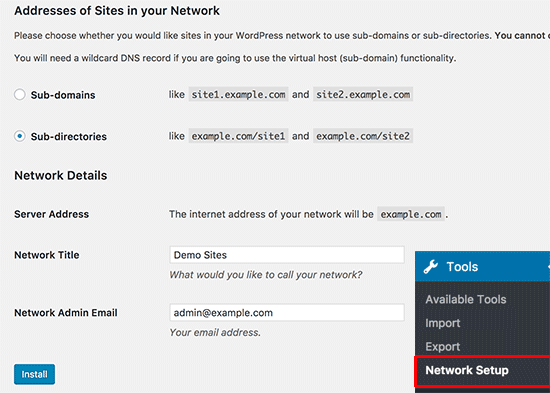
On the network setup screen, you will see a notice that you need Apache’s mod_rewrite module installed on your server. This module is installed and enabled on all the best WordPress hosting providers.
The next thing you need to do is to tell WordPress what kind of domain structure you will be using for sites in your network, e.g. Subdomains or Sub-directories.
After that, you would need to provide a title for your network and make sure that the email address in the Network admin email is correct.
Click on the install button to continue.
WordPress will now show you some code that you need to add to your wp-config.php and .htaccess file respectively.
